7/15/2018

How to fix Stuck On “iTunes Is Downloading the Software for This iPhone”?


1. iTunes Is Downloading the Software for This iPhone? How Long Does It Take?

Actually there is no particular time limit on how long it will take for iTunes to download the firmware. It varies from people to people, depending on how soon your iDevice connects with the Apple server to download the software. Roughly 'iOS Download and Update' usually takes almost 30 minutes. If everything goes fine then your device might run smoothly in no more than 1 hour.
If you find iTunes is stuck on "iTunes Is Downloading the Software for This iPhone" for hours, you may quit iTunes and restart to try again.

2. If Your iPhone Is in Normal Mode Before That

If your iPhone works normally before iTunes is stuck on downloading the software for this iPhone, you can try do something for both your iTunes and iPhone to avoid the problem.
Here in this section, we've brought to you quite effective solutions that you can perform to fix the iTunes stuck issue.

2.1. Update iTunes

First of all, make sure you have the latest iTunes installed. To update iTunes on Windows version, you can just click "Help" in the Menu, and then click "Check for Updates". Follow the instruction to install the latest version of your iTunes.
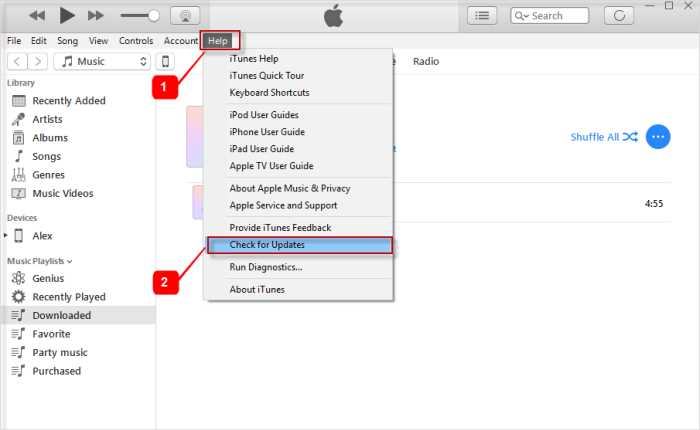
update iTunes
If you are using a Mac, you can just go the the App store and check if there is update for iTunes. Click "UPDATE" if there is the option.
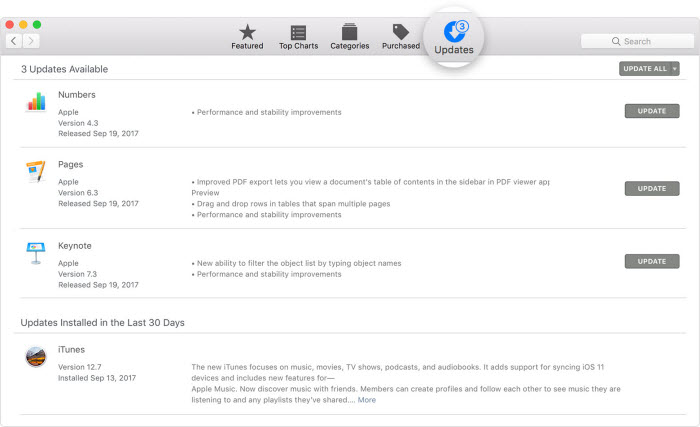
update iTunes on Mac

2.2. Hard Reset iPhone

Try performing hard reset on your iPhone as the first method to fix the issue as it has been proved effective for fixing iOS glitches. Follow the steps provided carefully:
  • iPhone 6 or Older Devices
Hold down the 'Sleep/Wake' button simultaneously with 'Home' button till you see the phone screen turn black. As soon as the Apple logo starts appearing, let go of the buttons.
  • iPhone 7/7 Plus
Press and hole the 'Sleep/Wake' and 'Volume Down' button together until the Apple logo appears. Leave them once after that.
  • iPhone 8/8 Plus/iPhone X
First quickly push the 'Volume Up' key and release quickly, repeat the same with the 'Volume Down' key. Press the 'Sleep/Wake' button till the Apple logo appears on the screen.

2.3. Reset all Settings

To reset all settings in your iPhone, you don't have to be a tech-geek. Knowing some simple steps will ease your burden and help you deal with the problem that iTunes is stuck on downloading the software for this iPhone. Here are the steps –
  1. From your iPhone home screen, go to 'Settings' and then click 'General'.
  2. Scroll down to the end of the screen and then press the 'Reset' tab found there.
  3. Under 'Reset' option click on 'Reset All Settings' and you are good to go. If prompted for a passcode then provide the same.
reset all settings

2.4. Restore from Backup

If you are still stuck on "iTunes is downloading the software for this iPhone", you should then try to resolve it by restoring your device from a previous backup. Sometimes, restoring with old backup fixes whatever additional glitches happened with an iOS device. So, here are the steps to do it –
  1. Ensure to install the latest version of iTunes on your computer and launch it. Connect your iPhone using a lightning cable and make sure to tap on 'Trust' when 'Trust This Computer' message appears on your screen. Now, click on your iPhone from the iTunes' main screen.
  2. Go to the 'Summary' tab and under the 'Backups' section click on 'Restore Backup' button. Select the most recent or any desired backup file from the list in the pop-up window and tap 'Restore'.
Note: Please do not disconnect the iDevice until the process completes.
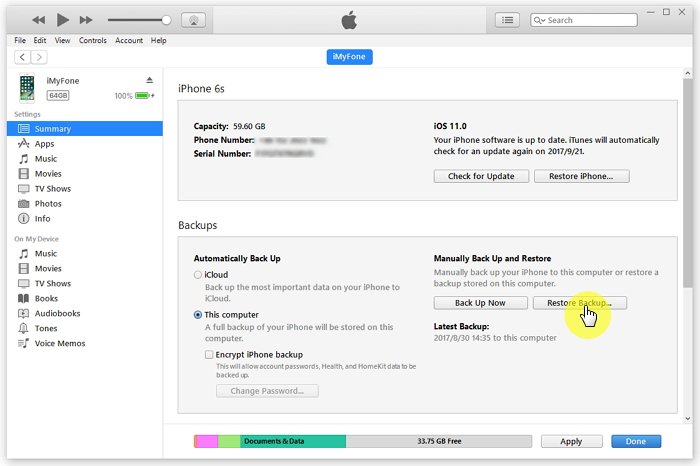
restore iTunes from backup
Gihosoft Free iPhone Data Recovery is a professional iPhone Data Recovery software to get back all your lost text message, photo, video, call history, note, contact and more from iPhone/iPad/iPod Touch.

7/14/2018

How to Backup Music from iPhone to iTunes

How to Backup Music from iPhone to iTunes


Use iTunes to Backup Music

If you change your iPhone or have unfortunately lost or damaged it, iTunes backup can help restore your lost data like music, camera roll, settings, accounts and documents on your new device. This means even if you have had the worst day and lost your precious iPhone, you can still take comfort in the thought that iTunes got your back and your backup!
Steps to Backup Music from iPhone to iTunes


On your PC or Mac, open iTunes.


Using a USB cable, connect your iPhone. Follow the on-screen steps, like use a passcode and “trust this computer”.


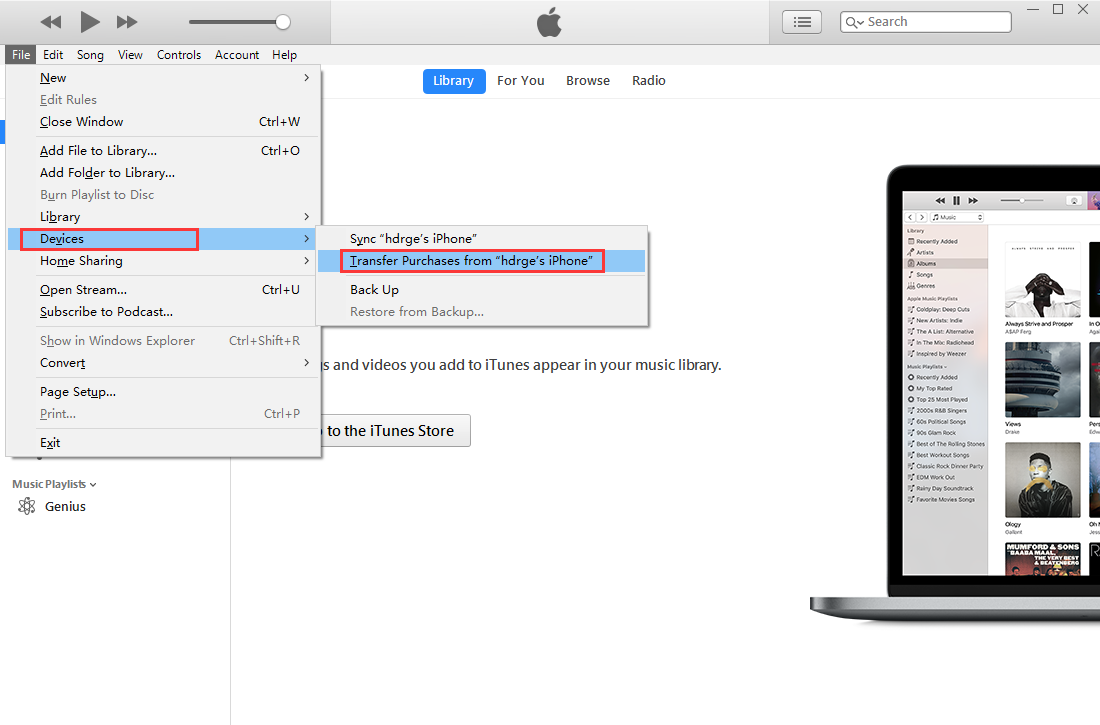
Click “File”. It's in the upper-left side of the iTunes window (Windows) or the top menu bar of the screen (Mac).


Select “Devices”. This option is near the bottom of the File drop-down menu.


Click “Transfer Purchases from [Name]”. Instead of "[Name]", you'll see your iPhone's name here. Clicking this option prompts the music to begin transferring onto your computer.

Sponsor ads:ISO Mounter Free Software for Creating Virtual CD Drive

Also Read:Download the Latest Version of Samsung Kies for PC and Mac OS


Wait for the purchased music to finish transferring. Depending on the amount of music that you need to transfer, this may take a few seconds to a few minutes.If you accidentally deleted or lost videos on iPhone, first please check on the Recently Deleted folder. Alternatively, you can use the professional tool Gihosoft iPhone Recovery to recover deleted iPhone videos from Camera Roll or some apps.


Although iTunes is great for backup, it has some limitations. For example it doesn’t support a lot of media formats because of which various music files or other audio/video files have to be converted for them to work properly.

My iPad Won’t Connect to WiFi?

1. Restart Your Router and Make Sure You Are Within Range

Before you start thinking that the problem is about the device, you need make sure the router is working correctly. One of the ways you can do that is to restart the router. It is possible that the router is unable to transmit over the 2.4 GHz or 5 GHz frequency block. To restart it, look for the red button on the router and press it. Wait about 2 minutes after restarting the router, then you can try to connect again.
Another reason your iPad could be failing to connect to Wi-Fi is that your device may be out of range. If the device is far from the router, change your location to see if the connection can improve.

2. Reset Your iPad Network Settings

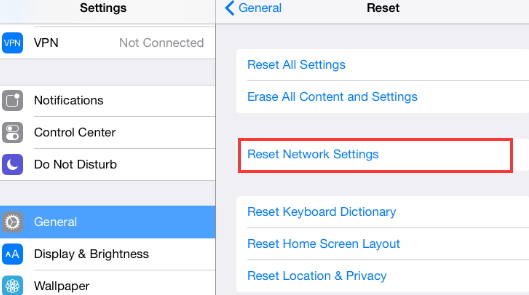
If you are certain that the problem is not due to the router, you may need to reset the iPad’s network settings. To do that, follow these very simple steps:
  1. Open the settings on your iPad and then tap on “General”.
  2. Tap on “Reset” and then click on “Reset Network Settings”.
  3. Now rejoin the network and then try connecting to it again.
reset-ipad-network-settings

3. Update The Router’s Firmware

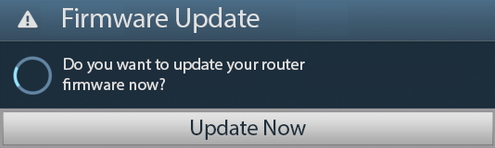
If you have verified that your router is working correctly and you have reset the network setting on your iPad but still can’t connect, you may need to ensure that the router has the latest firmware installed on it.
To update the firmware on your router, you need to check the device manually since different manufacturers will have different methods to do it. You should also check the manufacturer’s website for the instructions.
router-firmware-update

4. Reset Your iPad’s Wi-Fi Connection

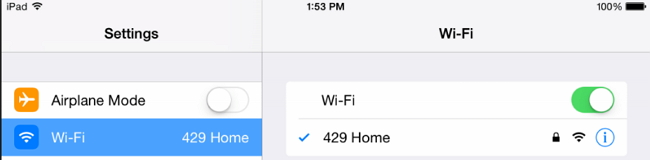
Resetting your iPad’s Wi-Fi connection may also help to fix the problem if you are still unable to connect to it. The following simple steps will help you reset your iPad WiFi connection:
  1. Go to Settings and then tap on Wi-Fi.
  2. Slide the button to OFF to turn off Wi-Fi.
  3. Wait a few seconds and then switch it on again.
  4. Now check to see if you can connect to Wi-Fi.
reset-ipad-wifi-connection

5. Check & Reenter Your Wi-Fi Password

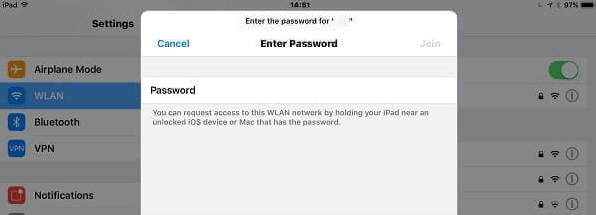
If you are unable to connect to Wi-Fi after joining a network, it is possible that you may enter the wrong password. Passwords can be difficult to remember especially when they have a combination of numbers and letters. Check to ensure that you are entering the correct password.
enter-wifi-password

6. Forget The Network and Rejoin

It is also possible that sometimes a software bug can interfere with the connection between your iPad and the router. In this case, you need to forget a network and then rejoin. If you suspect that this connection may have been tampered with in some way, follow these simple steps to forget and rejoin a network:
  1. Open the Settings app on your iPad.
  2. Tap on “Wi-Fi”.
  3. Next to the Network you’d like to forget, tap on the information button.
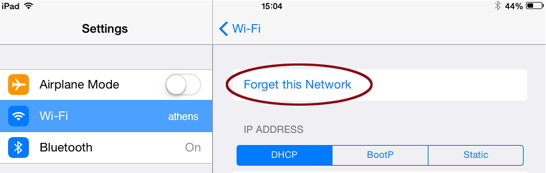
  4. Tap “Forget this Network” at the top of the screen.
  5. After a while, the network will reappear in the main Wi-Fi list. Select it and log in if you need to.
forget-wifi-network-ipad
You can then open a web page in Safari to check if the network is working correctly.

7. Turn Airplane Mode on/off

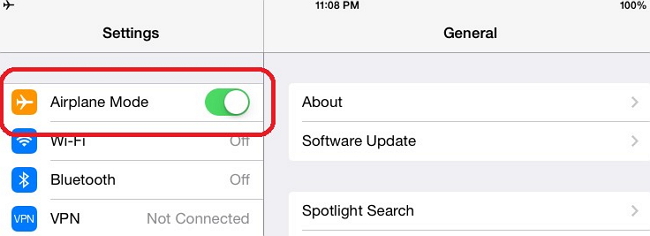
Toggling Airplane mode on and off has also been known to work for network related problems. Try it to fix this Wi-Fi problem.Gihosoft iPhone Data Recovery Free:https://www.gihosoft.com/iphone-data-recovery-free.html

  1. Open the Settings app on your iPad.
  2. Turn on Airplane Mode.
  3. Wait a few seconds and then turn off Airplane Mode again.
turn-on-off-ipad-airplane-mode

8. Force Restart Your iPad

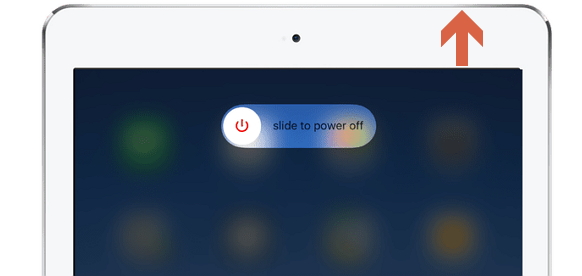
If all the above troubleshooting options have not worked to fix your troublesome Wi-Fi connection, you can force restart the iPad to see if refreshing the entire device can help. Follow these simple steps to force restart your iPad:If you accidentally deleted or lost videos on iPhone, first please check on the Recently Deleted folder. Alternatively, you can use the professional tool Gihosoft iPhone Recovery to recover deleted iPhone videos from Camera Roll or some apps.

  1. Press and hold the top or side button on your device until you see the slider on the screen.
  2. Drag the slider to turn off the device completely.
  3. Then simply press and hold the top or side button until the device turns on again and you see the Apple Logo.
restart-ipad

9. Update iPad to The Latest iOS Version

A device that is running a version of iOS that is not up to date may fail to work as expected including being unable to connect to a Wi-Fi network. This is why it is a good idea to update the iPad to the latest version. To do that, plug in the device into a power source and then follow these simple steps:
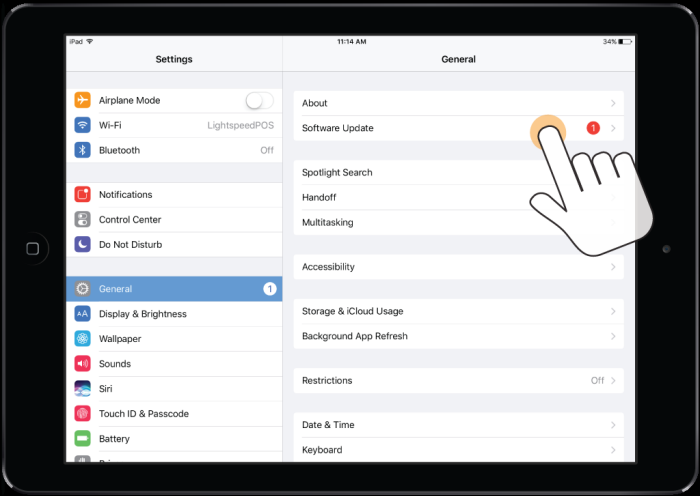
  1. Tap on Settings > General > Software Update.
  2. If an update is available, tap “Download and Install”. If you see a message saying you need to temporarily remove some apps since iOS needs more space, tap “Continue” or Cancel”. Any removed apps will be reinstalled once the update is complete.
  3. Tap “Install” and wait for the update to be installed on your device.
iPad-Software-update

10. Custom DNS on Your iPad

You can also try to change the Custom DNS setting if the problem persists. Here’s how to do that:
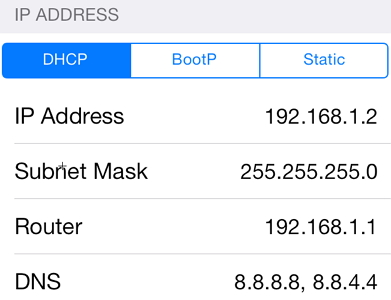
  1. Go to settings on your iPad and then tap on Wi-Fi.
  2. Click information button next to the network you’re trying to connect to and change the DNS to 8.8.8.8 or another secure DNS.
custom-dns-ipad

7/13/2018

Emus4u Package Installer for iOS Emulators


Here’s a list of emulators that are currently available on this installer.


GBA4iOS


NDS4iOS


iNDS


HappyChick


PPSSPP


Delta


Apart from emulators, it also has a few streaming and social media apps such as Instagram Red. Here’s how you can install it on your iPhone, iPad, and iPod touch.
COMPATIBILITY
IOS 9


9.0.1


9.0.2


9.1


9.2


9.2.1


9.3


9.3.1


9.3.2


9.3.3


9.3.4
IOS 10


10


10.0.2


10.0.3


10.1


10.1.1


10.2


10.2.1


10.3


10.3.1


10.3.2


10.3.3
IOS 11


iOS 11.0.1


iOS 11.0.2


iOS 11.1
REQUIREMENTS


iPhone, iPad, and iPod touch


A compatible firmware version


Internet connection
HOW TO DOWNLOAD AND INSTALL EMUS4U ON IOS


Step 1 Open Safari web browser.


Step 2 Open this URL – iinstaller.net


Step 3 Tap the “Install onto your iDevice” button to start the installation process. Remember, it is supported by in-app advertisements.


Step 4 It will now prompt you to install the profile. Tap Allow.


Step 5 Tap Install and once the profile is in place, tap Done. If you accidentally deleted or lost videos on iPhone, first please check on the Recently Deleted folder. Alternatively, you can use the professional tool Gihosoft iPhone Recovery to recover deleted iPhone videos from Camera Roll or some apps.


Best iPhone X Jailbreak Tweaks on Cydia for iOS 11.3.1 2018


In this article, we have compiled the best iPhone X jailbreak tweaks on Cydia that are compatible with iOS 11.3.1 – iOS 11.2.
Best iPhone X Jailbreak Tweaks on Cydia for iOS 11.3.1

Check out the video by our Friend Miguel (iDeviceHelp) to see the best iPhone X jailbreak tweaks for iOS 11.3.1 in action:
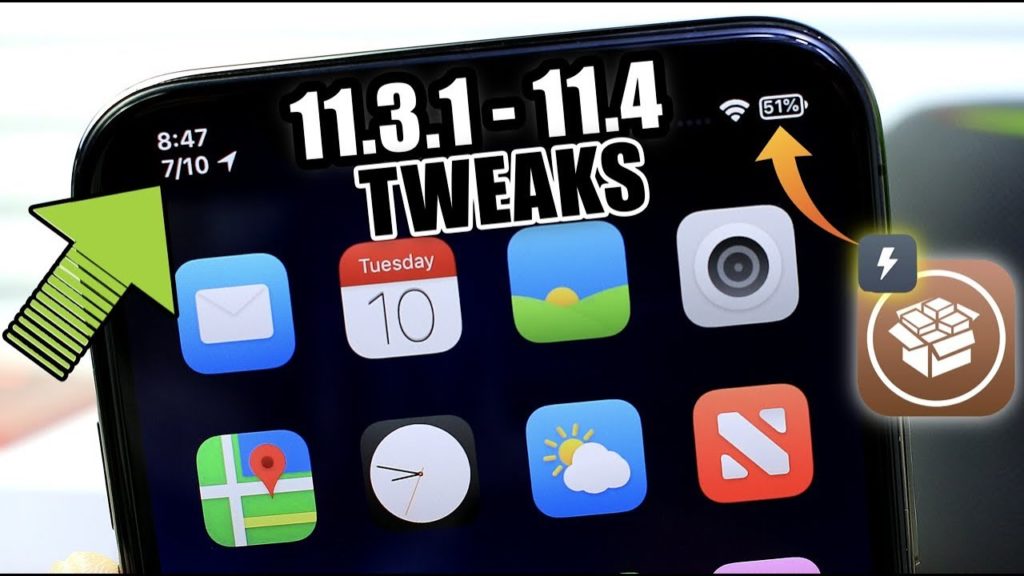
DateUnderTimeX

Thanks to the iPhone X notch, there isn’t much space available in the Status bar but as the name suggests, the jailbreak tweak adds the date below the time in the status bar.
DoubleTapLock

You can tap on the Lock screen to wake iPhone X. The doubleTapLock tweak, does the opposite. It allows you to double tap on the Home screen to lock your iPhone X.If you accidentally deleted or lost videos on iPhone, first please check on the Recently Deleted folder. Alternatively, you can use the professional tool Gihosoft iPhone Recovery to recover deleted iPhone videos from Camera Roll or some apps.


easySwitcherX

On iPhone X, you need to tap and hold on the app card and swipe up to force close the apps, which is not very convenient. easySwitcherX makes it much easier as you can simply swipe up on the app card to force kill the app.
PercentageBatteryX

To check the battery percentage of iPhone X, you need to swipe down from the top-right part of the screen – the right ear next to the notch to access the Control Center.

Apple doesn’t provide a way to enable battery percentage in the Settings app. PercentageBatteryX replaces the battery indicator with the battery percentage in the Status bar itself so you don’t need to swipe down to check the battery percentage on your iPhone X.

7/12/2018

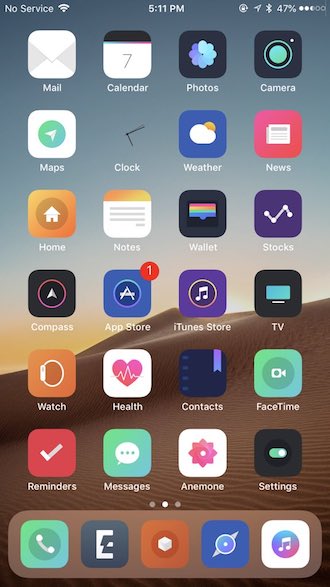
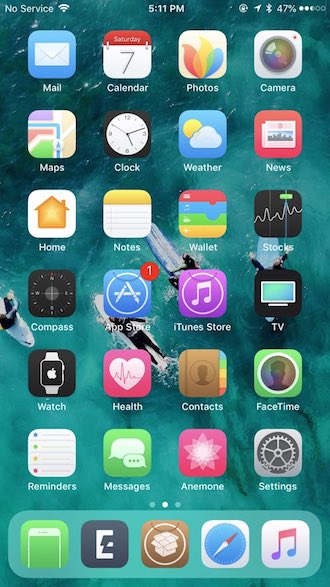
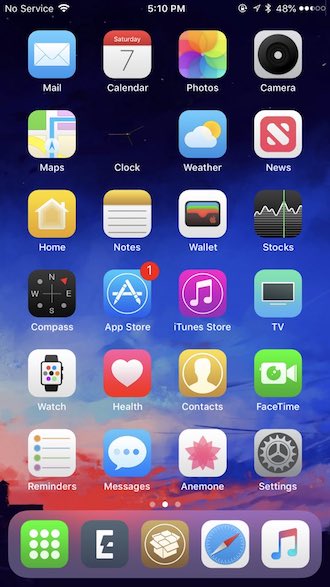
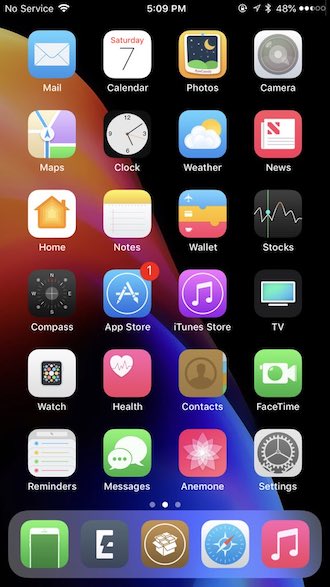
Best iOS 11.3.1 Jailbreak Themes on Cydia

In this article, we have compiled a list of the best iOS 11.3.1 jailbreak themes that will completely change the look of your iPhone or iPad.
Before we get started, here’s a look at the video by our friend iDeviceHelp which gives a glimpse of the best jailbreak themes.
Here’s the list of iOS 11.3.1 jailbreak themes featured in the video:

Mojito

Mojito jailbreak-theme

Echo

Echo Jailbreak Theme

Muze 3

Muze 3 Jailbreak Theme

Amury

Amury Jailbreak Theme

Ace X iOS 10

ACE X iOS 10 Jailbreak Theme

AyeCandy

Aye Candy Jailbreak Theme
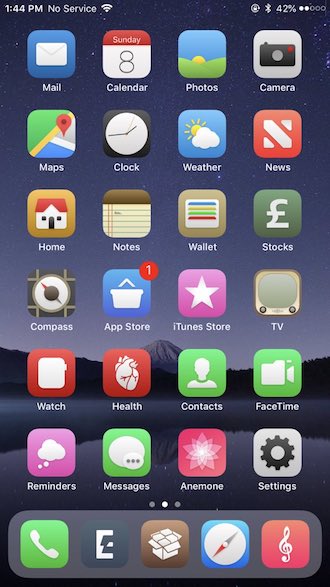
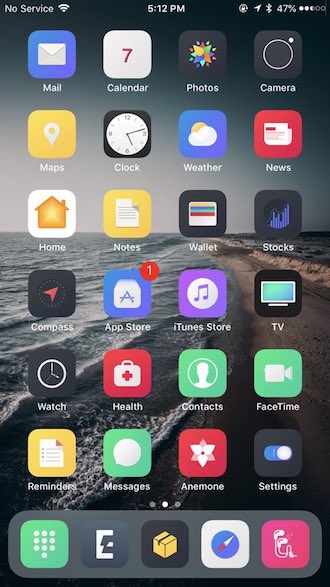
You can use Anemone to install these themes. If you need help, check out our post on how to use Anemone to customize your iPhone or iPad.
You should also check jailbreak tweaks compatible with iOS 11.3.1 and Cody’s awesome perfect iPhone jailbroken setup.If you accidentally deleted or lost videos on iPhone, first please check on the Recently Deleted folder. Alternatively, you can use the professional tool Gihosoft iPhone Recovery to recover deleted iPhone videos from Camera Roll or some apps.

Don’t forget to check out our favorite jailbreak tweaks for iOS 11.3.1 and also Cody’s awesome perfect jailbroken iPhone setup.

7/11/2018

“Taiwan” remote bug crashes messaging apps on iOS 11.3


TAIWANESE FLAG EMOJI CAN CRASH YOUR IPHONE

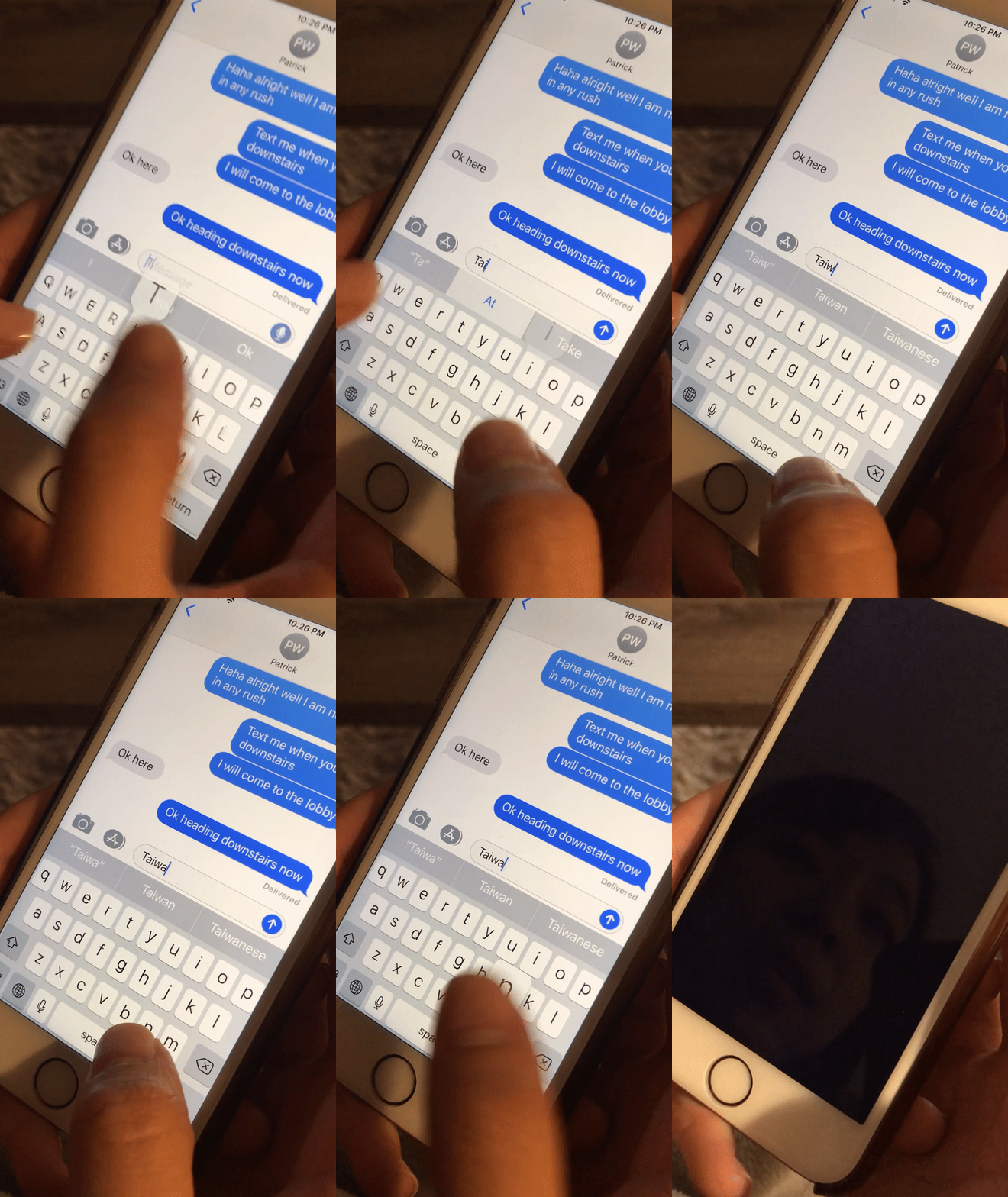
As soon as the user types “Taiwan” or receives the Taiwan flag emoji, the messaging app crashes. The remote bug is limited to iOS apps that process remote messages.
Security researcher Patrick Wardle first came across the emoji flag bug when his Taiwanese friend complained that China had hacked her iPhone.
Wardle also posted the following image on his blog that shows this remote bug in action.Gihosoft iPhone Data Recovery Free:https://www.gihosoft.com/iphone-data-recovery-free.html

Affected versions include iOS 11.3 and below. The latest version iOS 11.4.1 patches this bug (CVE-2018-4290) on all devices.
Patrick was able to figure out a fix for the “Taiwan” bug on all affected versions. It involves toggling the region from the United States to China and then back to the United States once again.

HOW THE “TAIWAN” REMOTE BUG WORKS

For the uninitiated, Taiwan sees itself as a sovereign nation but China considers the Asian island a part of Chinese territory.
To appease the Chinese higher-ups, Apple decided to censor the word “Taiwan” and the Taiwanese flag on its devices.
But funnily enough, Apple’s appeasement efforts fell flat on their face when the text began crashing users’ devices. Here’s how the bug works –
  • iOS reads the incoming message.
  • The removeEmoji method is invoked if the message contains the Taiwanese flag emoji.
  • The emoji is removed when the region is recognized as China.
As long as the user had set the region as “China”, the method worked just fine. However, once the device went “region-less”, the method couldn’t ascertain the location of the device thus resulting in a crash.
[Source – Objective-See]

Featured Post

iOS 12 group Facetime, Supports upto 32 people simultaneously

Apple introduces a group facetime in iOS 12 that supports video call up to 32 people at the same time along with the LIVE Memoji. It’s ...